Okular - Installation
We have found that the Okular document viewer works well for our needs.
Okular is free, works across most platforms, and preserves your annotations when you switch between devices or operating systems.
We have installed Okular on your virtual machine, but just in case here are the Linux installation instructions.
Note: GUI applications like Okular won't run as root. All okular commands must be executed by a regular user.
Testing For Okular Install
To determine if okular is installed execute the command okular - -version as a regular system user.
From the output below we can see okular is not installed.

Since okular is not installed, we will download it from the Extra Packages for Enterprise Linux (epel-release) repository
Installing epel-release Repository
Execute the following commands as user root.
Determine if the epel-release repository is installed and enabled by executing the command dnf repolist | grep epel.
If there is no output the repository is not installed so execute the command dnf -y epel-release
Verify the repository has installed.

Installing Okular
Execute the command dnf -y install okular to install the okular application.
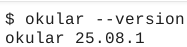
Verify the installation by executing the command okular - -version.
You cannot execute the command okular as user root, You must be a regular user.
You may Install Okular on Windows using this link to KDE installers or this link to install from the Microsoft Store. The KDE installers provide nightly builds and let you choose the installation location, while the Microsoft Store location automatically installs Okular to C:\Program Files\WindowsApps by default.